This page collects fixes for the problems students most often hit while setting up the course software. Work through the section that matches your symptom. If none of these solve it, see Getting Help at the bottom.
Accessing Conda in Windows Terminal
The most common Windows problem is that conda works in the Anaconda Prompt
but not in Windows Terminal, PowerShell, or the VS Code terminal:
'conda' is not recognized as an internal or external command,
operable program or batch file.
This means Conda was not added to your PATH during installation. You can add
it manually:
Open the Start Menu and search for “Environment Variables.”
Click on “Edit the system environment variables.”
In the System Properties window, click on “Environment Variables.”
Under “System Variables,” find the
Pathvariable and select it.Click “Edit” and then “New.”
Add the following paths to the list:
C:\Users\<YourUsername>\miniconda3\ScriptsC:\Users\<YourUsername>\miniconda3\condabin
Click “OK” to close all windows.
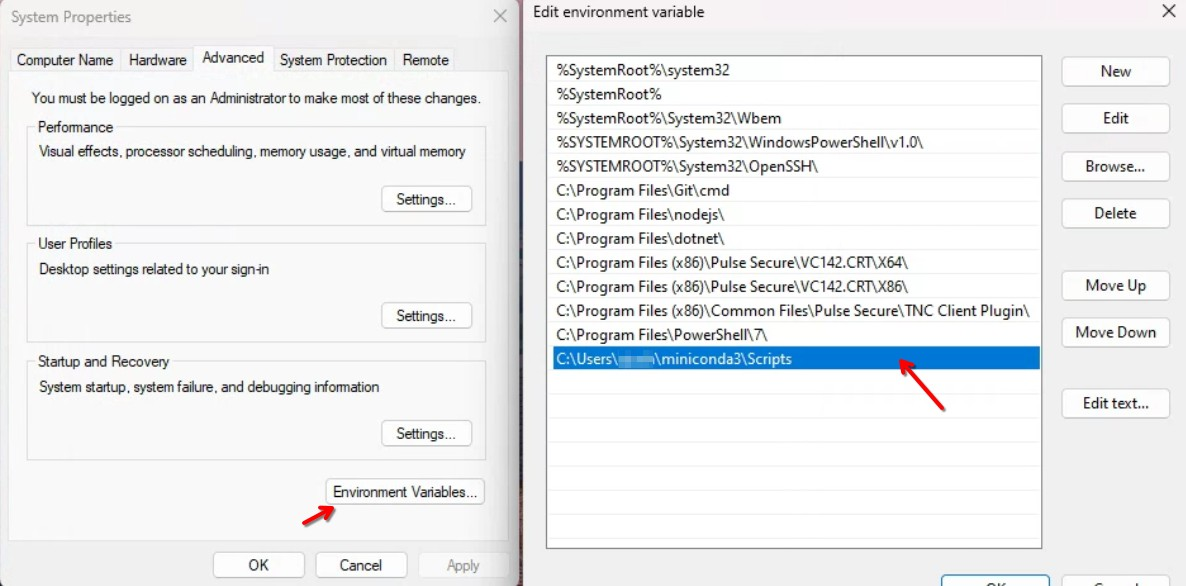
Replace <YourUsername> with your actual Windows username, and adjust the paths
if you installed Miniconda somewhere other than the default location. Close
and reopen your terminal afterward — a running terminal does not pick up a
changed PATH.
Verify the fix:
conda --versionconda activate Does Not Work
If conda is found but conda activate geo fails with a message about running
conda init, your shell has not been configured for Conda. Run the one-time
initialization from the Anaconda Prompt (Windows) or your terminal (macOS and
Linux):
conda init --allOn Windows you may need to target cmd.exe and PowerShell explicitly:
conda init cmd.exe
conda init powershell
Then close and reopen the terminal. If PowerShell now refuses to load the Conda profile with a script-execution error, allow local scripts to run:
Set-ExecutionPolicy -ExecutionPolicy RemoteSigned -Scope CurrentUserThe geo Environment Is Missing from VS Code or Jupyter
If your environment does not appear in the VS Code interpreter picker or the Jupyter kernel list, first confirm it actually exists:
conda env listIf it is listed, the tool simply has not detected it yet:
VS Code. Open the Command Palette (
Ctrl+Shift+P/Cmd+Shift+P), run Python: Select Interpreter, and choose thegeoenvironment. If it is not offered, run Developer: Reload Window and try again.JupyterLab. Install a kernel for the environment, then restart JupyterLab:
conda activate geo
conda install -c conda-forge ipykernel
python -m ipykernel install --user --name geo --display-name "Python (geo)"
Always launch JupyterLab from inside the activated environment, not from base.
Package Installation Is Slow or Fails to Solve
If conda install sits at “Solving environment” for a long time, or ends with a
conflict, use Mamba instead — it resolves the same environments far faster:
conda install -n base mamba -c conda-forge
mamba install -c conda-forge pygis
Two habits prevent most solver conflicts:
Use
conda-forgeconsistently. Mixing channels is the usual cause of unsolvable environments. Install geospatial packages with-c conda-forgeevery time.Install packages together, not one at a time. Passing all packages in a single command lets the solver find a combination that works.
If an environment is badly broken, it is usually faster to rebuild it than to repair it:
conda remove -n geo --all
conda create -n geo python=3.12
conda activate geo
mamba install -c conda-forge pygis
ModuleNotFoundError for a Package You Installed
This almost always means you installed the package into one environment and are running Python from another. Check which Python is actually running:
conda activate geo
python -c "import sys; print(sys.executable)"
The path printed should be inside your geo environment. If it is not, the
environment is not active, or your editor is pointed at a different interpreter.
In a notebook, run the same check in a cell and confirm the selected kernel is
Python (geo).
Git Asks for a Password on Every Push
GitHub no longer accepts account passwords over HTTPS. Either authenticate with the GitHub CLI:
gh auth loginor switch the remote to SSH after adding an SSH key to your GitHub account:
git remote set-url origin git@github.com:<username>/<repository>.gitGetting Help
When something still does not work, post in the course discussion or bring it to office hours. Include:
Your operating system and version
The exact command you ran
The complete error message, copied as text rather than a screenshot
The output of
conda infoandconda env list
Most setup problems are quick to diagnose with that information and slow to diagnose without it.